sphinxcontrib-screenshot
A Sphinx extension to embed website screenshots.
Install
sphinxcontrib-screenshot uses playwright to take screenshots, so it must be installed with playwright install. You can have more details on the playwright documentation.
pip install sphinxcontrib-screenshot
playwright install
Usage
Add sphinxcontrib.screenshot to your conf.py.
extensions = ["sphinxcontrib.screenshot"]
Then use the screenshot directive in your Sphinx source file.
.. screenshot:: http://www.example.com
The extension also supports the file:// protocol to take screenshots of local files, and root or document relative paths.
.. screenshot:: file:///path/to/your/file.html
.. screenshot:: /static/example.html
.. screenshot:: ./example.html
Options
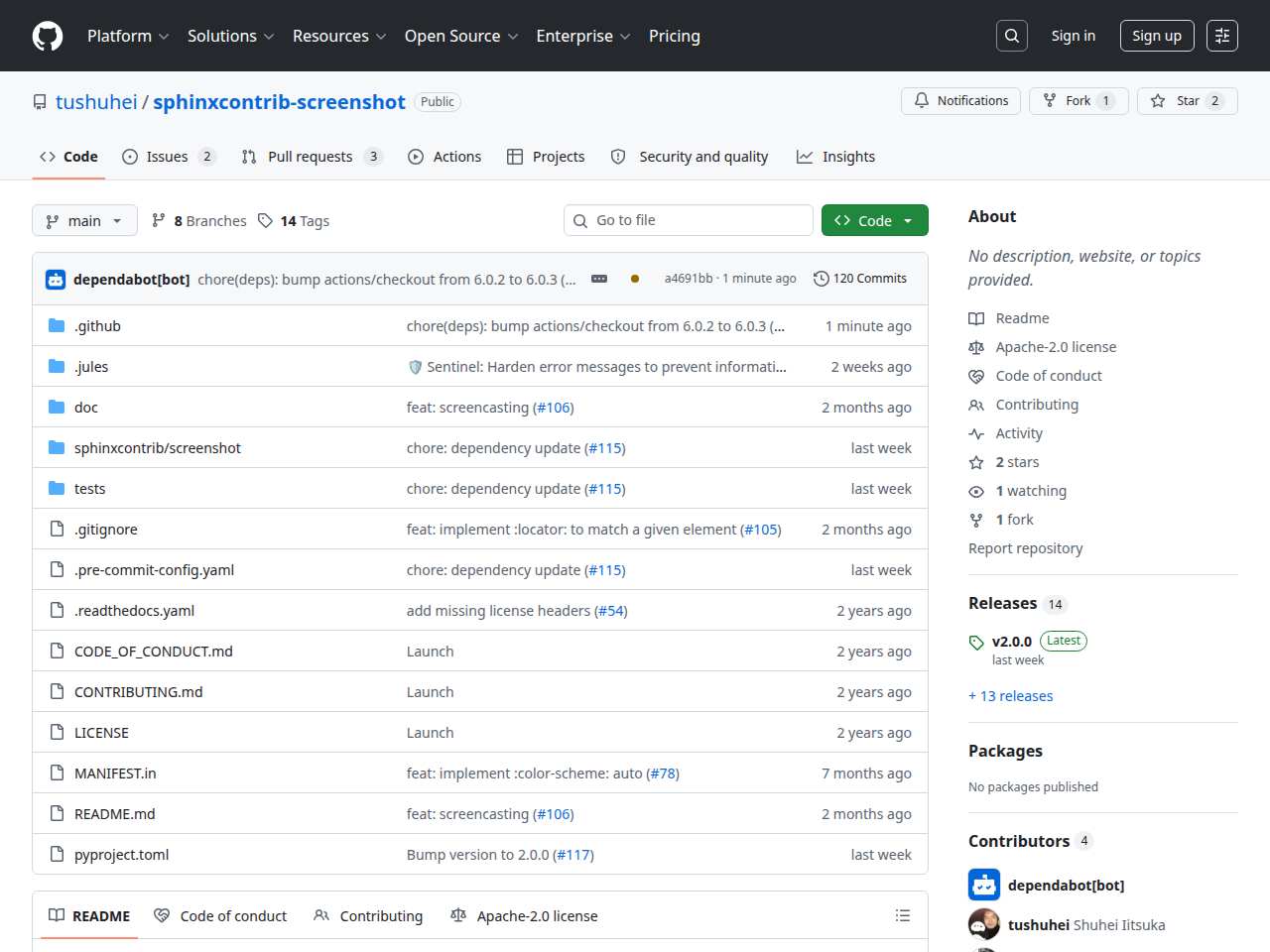
An example of screenshot using the figure :align: and :width: options.
screenshot inherits from the figure directive and supports all its options (:align:, :alt:, :figclass:, :figwidth:, :height:, :loading:, :scale:, :target:, :width:)
.. screenshot:: https://github.com/tushuhei/sphinxcontrib-screenshot
    :align: right
    :width: 400

    An example of screenshot using the figure `:align:` and `:width:` options.
:alias:
Artifacts are named after a hash of all their generation parameters, so the
filenames change whenever an option changes and are not predictable. Set
:alias: to also write the artifact under a stable, predictable name. This
is convenient to link to the file from outside the documentation (an external
page, a README…).
.. screenshot:: http://www.example.com
  :alias: homepage
The hashed file is still produced (it stays the build cache); :alias: adds
a copy next to it. The example above is then available at
_static/screenshots/homepage.png (and homepage.pdf when pdf is set). The same option works on screencast, producing
_static/screencasts/homepage.webm (plus homepage.png for an automatic
poster). With color-scheme: auto, two artifacts are
written, suffixed -light and -dark (e.g. homepage-light.png).
The alias is a bare filename stem, restricted to ASCII letters, digits,
., _ and -. If two directives share the same alias, the last one
written wins.
:browser:
You can choose the browser to use to take the screenshots with the :browser: option.
.. screenshot:: http://www.example.com
  :browser: firefox
:color-scheme:
You can set the color scheme you prefer to display the page (‘dark’ or ‘light’):
.. screenshot:: http://www.example.com
  :color-scheme: dark
:context:
The custom context to use for taking the screenshot. See screenshot_contexts.
.. screenshot:: http://www.example.com
  :context: logged-as-user
:device-scale-factor:
You can set the device scale factor, which can be thought of as DPR (device pixel ratio):
.. screenshot:: http://www.example.com
  :device-scale-factor: 2
:full-page:
You can indicate that you want the screenshot to take the whole page and not just the visible window:
.. screenshot:: http://www.example.com
  :full-page:
:header:
You can pass additional headers to the requests, for instance to customize the display language or pass authentication details:
.. screenshot:: http://www.example.com
  :header:
    Authorization Bearer my-super-secret-token
    Accept-Language fr-FR,fr
:interactions:
You can describe the interaction that you want to have with the webpage before taking a screenshot in JavaScript.
.. screenshot:: http://www.example.com
  :interactions:
    document.querySelector('button').click();
:locator:
You can crop the screenshot to a single element on the page using a Playwright selector. The image is bounded by the element’s bounding box rather than the viewport.
.. screenshot:: http://www.example.com
  :locator: #content
The page is still rendered at the full viewport, so layout (responsive design, scrollbars) reflects the configured viewport size; only the captured area is reduced to the matched element.
The selector must match exactly one element (Playwright strict mode). A multi-match selector raises an error; refine the selector. If no element is matched within timeout, the build fails.
When combined with full-page, :locator: wins
(the bounding box is honored). When combined with pdf,
the PNG is cropped but the PDF stays page-level — Playwright’s PDF
API has no per-element variant.
:locale:
You can set the locale for the browser context:
.. screenshot:: http://www.example.com
  :locale: en-US
:pdf:
It also generates a PDF file when pdf option is given, which might be useful when you need scalable image assets.
.. screenshot:: http://www.example.com
  :pdf:
:timezone:
You can set the timezone for the browser context:
.. screenshot:: http://www.example.com
  :timezone: America/New_York
:status-code:
You can specify the expected HTTP status codes. A warning is emitted if the page returns a different code.
:timeout:
You can set the timeout in milliseconds for page operations (navigation, interactions):
.. screenshot:: http://www.example.com
  :timeout: 30000
Default: 10000 (10 seconds)
.. screenshot:: http://www.example.com
  :status-code: 200,201,302
Default: 200,302
The warning can be suppressed in conf.py:
suppress_warnings = ['screenshot.status_code']
:viewport-width: and :viewport-height:
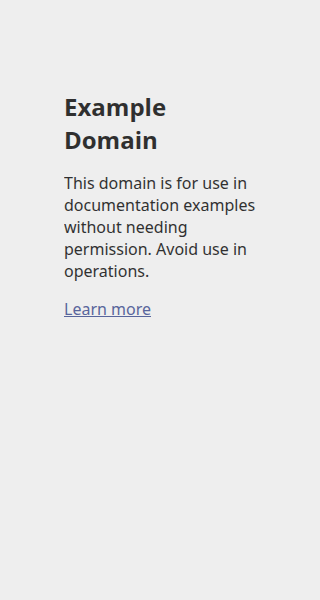
You can specify the screen size for a particular screenshot with viewport-width and viewport-height parameters.
.. screenshot:: http://www.example.com
  :viewport-width: 320
  :viewport-height: 600
Screencasts
In addition to still screenshots, you can record a short WebM screencast of
a page using the screencast directive. It inherits from docutils’
Figure, so the directive body is parsed as the figure caption (rich
reST) and the standard figure options (:align:, :figclass:,
:figname:, :name:, :class:) are accepted. It also reuses the
page-setup options of screenshot (:browser:,
:viewport-width:, :viewport-height:, :locale:, :timezone:,
:headers:, :context:, :device-scale-factor:, :status-code:,
:timeout:, :interactions:).
Scrolling the project page.
.. screencast:: https://github.com/tushuhei/sphinxcontrib-screenshot
    :viewport-width: 800
    :viewport-height: 400
    :controls:
    :muted:
    :interactions:
        window.scrollTo({top: 600, behavior: 'smooth'});
        await new Promise(r => setTimeout(r, 1500));

    Scrolling the project page.
Recording starts once the page has loaded and covers the JavaScript
interactions passed to :interactions:, then closes. There is no separate
:duration: option: to keep the page busy after a click (e.g. to capture
a CSS transition), keep awaiting in the JavaScript itself
(await new Promise(r => setTimeout(r, ms))). Playwright awaits the
returned Promise, so the video covers exactly what the script does.
Frames are captured through the Chrome DevTools screencast (chromium
only) and encoded by ffmpeg in a single pass. With Playwright’s bundled
ffmpeg the frames are JPEG q100 encoded to near-lossless VP8; pointing
:ffmpeg-executable: at a system ffmpeg switches capture to lossless PNG
and unlocks lossless/VP9 output.
Video options
:loop:,:autoplay:,:muted:,:controls:HTML5
<video>boolean attributes.:autoplay:without:muted:is rejected by most browsers; if you set the former without the latter, a warning is emitted andmutedis forced.:poster:Still image displayed before playback. Four modes:
Absent: no poster, the
<video>shows a black background. The directive is also skipped on non-HTML builders.Flag (
:poster:with no value) or:poster: auto-start: an automatic screenshot of the page is taken right after load, before interactions. Saved next to the WebM and used as theposterattribute. Currently only generated for HTML builds.:poster: auto-end: same as above but the screenshot is taken after the interactions complete, so the poster reflects the final state shown at the end of the video.URL (
:poster: ./image.png): explicit URL of an image you provide. Also used as fallback for non-HTML builders.
auto-startandauto-endare reserved keywords. To pass an image whose URL is literally one of those, use a relative form like./auto-endor add an extension (auto-end.png).:trim-start:Drop the given number of seconds from the start of the recording (
:trim-start: 1.5). Absent or empty means no trim. Because recording only starts once the page has loaded, there is no initial blank flash to trim — this is for skipping a deliberate lead-in in your interactions.:locator:Playwright selector. When set, the video is cropped to the bounding box of the matched element, similarly to the screenshot directive’s
:locator:. Requires ffmpeg.:locator-padding:Pad the locator’s bounding box before cropping. Accepts the CSS
paddingshorthand: an integer (uniform), or 1–4 whitespace-separated integers (1 = uniform; 2 = top/bottom + right/left; 3 = top + right/left + bottom; 4 = top + right + bottom + left). The padded box is clamped to the viewport.:ffmpeg-options:ffmpeg encoder options for the recording pass, e.g.
-an -c:v libvpx-vp9 -lossless 1 -row-mt 1. Only the encoder portion: the image input, the even-dimension pad and the:locator:crop (-vf) are injected automatically, so do not include-ior-vf. When unset, the pass encodes near-lossless VP8 (the only codec the bundled ffmpeg supports). VP9/H264/AV1 or true lossless require a system ffmpeg via:ffmpeg-executable:.:ffmpeg-executable:Path to a system ffmpeg binary to use instead of Playwright’s bundled one. The bundled binary only decodes mjpeg and encodes VP8, so capture falls back to JPEG q100. A system ffmpeg that can decode PNG switches capture to lossless PNG and enables VP9, H264, AV1 and lossless output through
:ffmpeg-options:.:fps:Frame rate for the recorded video. Defaults to
25.:output-extension:Output container extension, without leading
.(webm,mp4, …). Defaults towebm.
Caption
The directive body is parsed as the figure caption (rich reST). It renders
inside a <figcaption> below the <video> for HTML builds, and is
preserved as the caption of the fallback <image> node when an explicit
:poster: URL is used on non-HTML builders.
.. screencast:: ./demo.html
   :align: center
   :figclass: my-screencast
   :interactions:
     document.querySelector('button').click();

   *Clicking* the demo button — caption supports **rich** reST.
Context builders and screencasts
If you use screenshot_contexts, the same
three-argument builder works for screencast (recording no longer needs a
record_video_dir — frames are captured through the CDP screencast):
def logged_as_user(browser, url, color_scheme):
    return browser.new_context(
        color_scheme=color_scheme,
        storage_state="user.json",
    )
Limitations
Chromium only. Recording uses the Chrome DevTools screencast, which Firefox and WebKit do not expose.
HTML output only. Other builders fall back to
:poster:if provided, otherwise the directive is skipped.Defaults to WebM/VP8 with no audio. mp4/h264/VP9 and lossless require a system ffmpeg via
:ffmpeg-executable:plus:ffmpeg-options:and:output-extension:.Recording requires ffmpeg. Playwright already bundles one as part of
playwright install; the extension uses it automatically and falls back to a system ffmpeg on PATH if needed.
Configuration
screenshot_contexts
You can use the screenshot_contexts configuration parameter and the :context: option to set up custom contexts for the screenshots. This can be useful for instance to perform authentication requests before accessing to protected pages. Note that you can use the storage_state parameter to load a previous context and avoid making authentication requests for every screenshot.
 screenshot_contexts = {
     "logged-as-user": "my_module.doc:logged_as_user",
 }
 def logged_as_user(browser, url, color_scheme):
     try:
         # Attempt to load a saved context from 'user.json'
         context = browser.new_context(
             color_scheme=color_scheme, storage_state="user.json"
         )
     except FileNotFoundError:
         # Create a fresh new context
         context = browser.new_context(color_scheme=color_scheme)

         # Load the authentication page
         page = context.new_page()
         page.goto(get_root_url(url) + "/login")
         page.wait_for_load_state()

         # Perform authentication
         page.locator("input[name=login]").fill("user")
         page.locator("input[name=password]").fill("password")
         page.click("*[type=submit]")
         page.wait_for_load_state()

         # Save the context in 'user.json'
         context.storage_state(path="user.json")
     return context
screenshot_default_browser
This is the default value to use when :browser: is not set.
screenshot_default_browser = "firefox"
screenshot_default_color_scheme
This is the default value to use when :color-scheme: is not set.
screenshot_default_color_scheme = "dark"
screenshot_default_full_page
This is the default value to use when :full-page: is not set.
screenshot_default_full_page = True
screenshot_default_device_scale_factor
This is the default value to use when :device-scale-factor: is not set. Defaults to 1.
screenshot_default_device_scale_factor = 2
screenshot_default_locale
This is the default value to use when :locale: is not set. Defaults to None.
screenshot_default_locale = "en-US"
screenshot_default_timezone
This is the default value to use when :timezone: is not set. Defaults to None.
screenshot_default_timezone = "America/New_York"
screenshot_default_timeout
This is the default value to use when :timeout: is not set. Defaults to 10000 (10 seconds).
screenshot_default_timeout = 30000
screenshot_default_headers
Those are the default headers to be used when taking screenshots. They can be overwritten by :header::
screenshot_default_headers = {
    "Authorization": "Bearer my-super-secret-token",
    "Accept-Language": "fr-FR,fr",
}
screenshot_default_viewport_width and screenshot_default_viewport_height
You can define the default size of your screenshots in conf.py, those values will be used by default when :viewport-width: and :viewport-height: are not set:
screenshot_default_viewport_width = 1920
screenshot_default_viewport_height = 1200
Screencast defaults
Per-directive options on screencast always win; these set the
fallback when the directive omits the option.
# Boolean flags. Each maps 1:1 to the matching directive flag.
screencast_default_loop = True
screencast_default_autoplay = True   # implies muted (browser policies)
screencast_default_muted = True
screencast_default_controls = True

# Trim the recording's prefix. None disables; 'auto' uses the timer-
# based mode that elides the about:blank flash; a number is a literal
# offset in seconds.
screencast_default_trim_start = 'auto'

# Apply a poster to every screencast. None disables; 'auto-start'
# screenshots before interactions; 'auto-end' screenshots after; a
# path/URL provides an explicit poster.
screencast_default_poster = 'auto-start'
Local WSGI application
sphinxcontrib-screenshot can launch your local WSGI applications and take screenshot of thems.
Define them in the screenshot_apps dict.
The key must be a name you choose for your applications, and the value must be a callable that creates a WSGI app:
 from flask import Flask

 def create_app(sphinx_app):
     app = Flask(__name__)

     @app.route("/hello")
     def hello():
         return "Hello, world!"

     return app
 screenshot_apps = {
     "example": "my_module.my_app:create_app",
 }
Note that you might manually add your application module in sys.path.
Then you can use a Sphinx substitution with your application name to refer to its temporary URL:
.. screenshot:: |example|/hello
Notes
This extension uses Playwright to capture a screenshot of the specified website only. No data is sent to any other external server; the request is limited to the website specified in the directive. Be cautious: avoid including sensitive information (such as authentication data) in the directive content.
Contributing
How to Contribute
We would love to accept your patches and contributions to this project.
Before you begin
Sign our Contributor License Agreement
Contributions to this project must be accompanied by a Contributor License Agreement (CLA). You (or your employer) retain the copyright to your contribution; this simply gives us permission to use and redistribute your contributions as part of the project.
If you or your current employer have already signed the Google CLA (even if it was for a different project), you probably don’t need to do it again.
Visit https://cla.developers.google.com/ to see your current agreements or to sign a new one.
Review our Community Guidelines
This project follows Google’s Open Source Community Guidelines.
Contribution process
Code Reviews
All submissions, including submissions by project members, require review. We use GitHub pull requests for this purpose.
License
Apache 2.0; see the LICENSE file for details.
Disclaimer
This project is not an official Google project. It is not supported by Google and Google specifically disclaims all warranties as to its quality, merchantability, or fitness for a particular purpose.